Set up Moji Debate Bot

Connect your tournament, then run check-ins, releases and reminders in Discord.

Last updated

New tournament? Start below. Already connected? Jump to onboarding or choose a task in On this page.

Click a command marked “copy”, paste it in Discord, then fill in its options.

First-time setup

Before you start

Ask these people to help with setup. One person can do both if they have the required access.

  • Discord server admin: invite the bot and set up its roles and announcement channel. You need Manage Server and Manage Roles. The bot requests Manage Channels so setup can create and secure its private Command Log; it never requests Administrator. In the announcement channel, allow the bot to view and send messages, embed links and mention everyone.
  • CalicoTab tournament admin: get the tournament URL and API token, then enter them in the bot’s private setup form. The steps below show where to find them.

Required setup

  1. Invite the bot. The person with Discord access opens Add Moji Debate Bot to Discord, chooses the tournament server, and completes one Discord authorization.
    • Command access: Prepares Bot Manager command permissions; no profile or email access is requested.
    • Standard roles and Command Log: Setup creates or reuses CAP, Tab, Equity, Adjudicator, Debater, and OrgComm roles with no extra Discord permissions, then creates a private read-only #moji-command-log for Bot Managers, so staff do not need to create either beforehand.
  2. Activate the server. The server appears as Pending, so operational commands stay unavailable until payment activation.
    • One-time payment: The browser returns to Moji Debate Bot for a one-time 250,000 VND payment hosted by PayOS.
    • Automatic activation: A securely verified payment automatically activates the server. Wait for the activation page to confirm success before continuing; browser redirect parameters alone never activate access.
    • Support fallback: Manual approval by Chu Đức An remains an administrative fallback if you need support.
  3. Set the role order. In Server Settings → Roles, place Moji Debate Bot above every role it needs to update.
    See the Discord role order
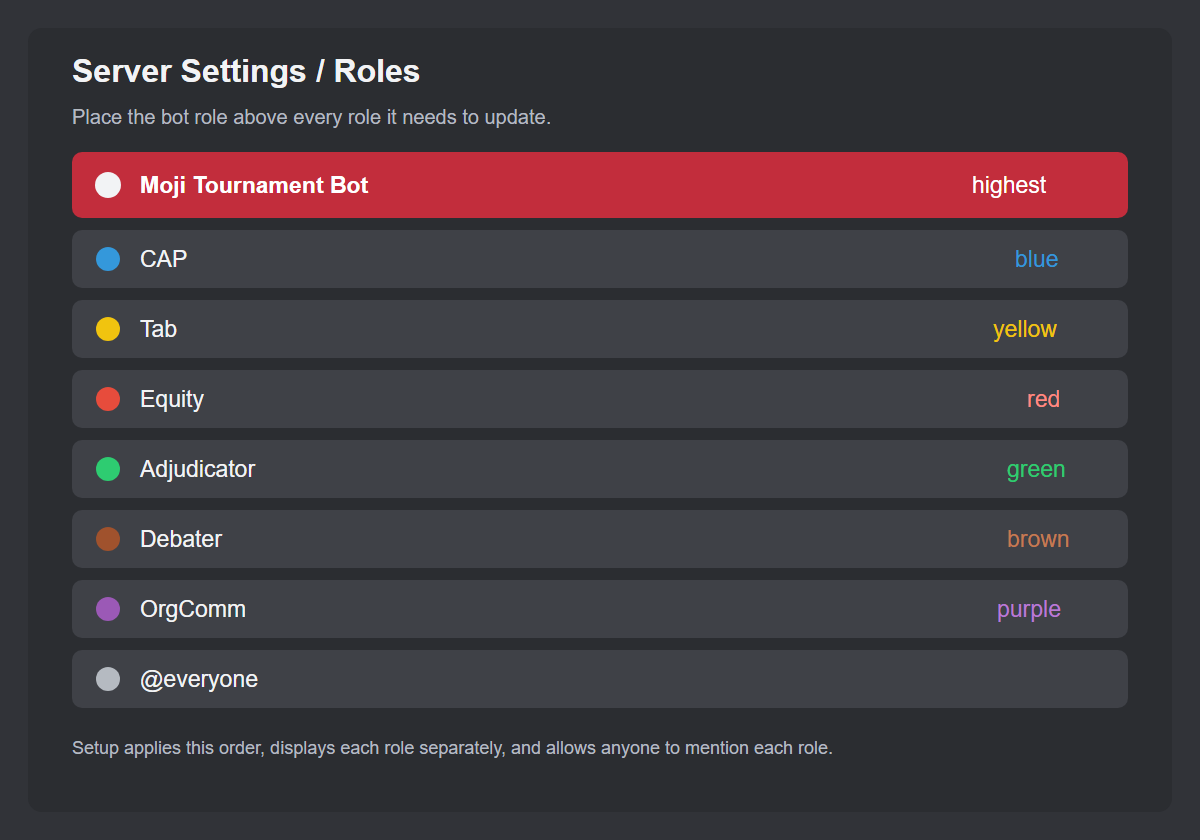
    Discord Roles settings showing Moji Debate Bot above blue CAP, yellow Tab, red Equity, green Adjudicator, brown Debater, purple OrgComm, and everyone
    Put the bot role firstSetup configures the standard tournament roles. The coral Moji role shown here was set manually by a server administrator; setup does not set that role’s color. The bot can update only roles below its own role.Open full-size image
  4. Find your API token. Sign in to CalicoTab as an administrator and open Site Home. Select Get API Token / Change Password and copy the token at the top. You do not need to change your password.
    Find Site Home in CalicoTab
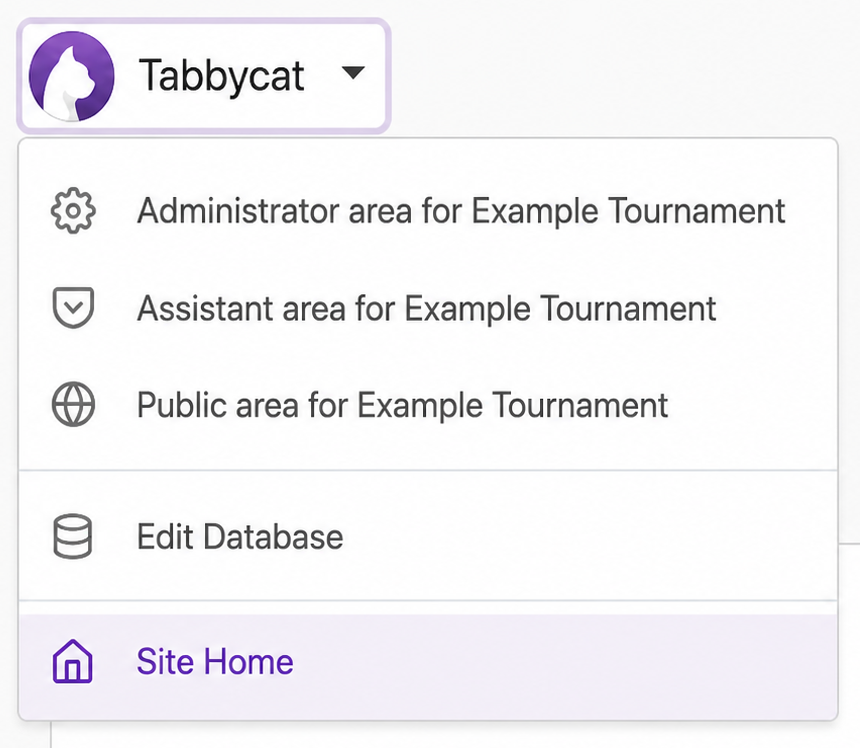
    Sanitized CalicoTab menu with Site Home highlighted
    Find Site HomeOpen the tournament menu, then choose Site Home.Open full-size image
    See where to copy the API token
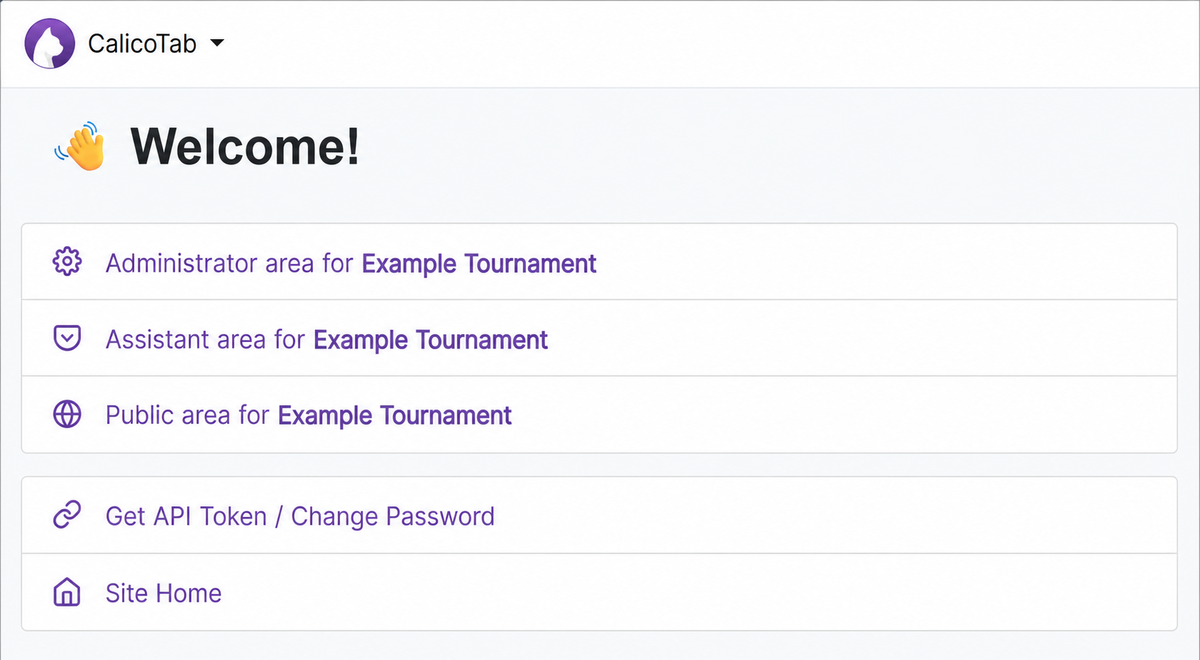
    Sanitized CalicoTab Site Home showing the Get API Token and Site Home options
    Get the API tokenChoose Get API Token / Change Password.Open full-size image
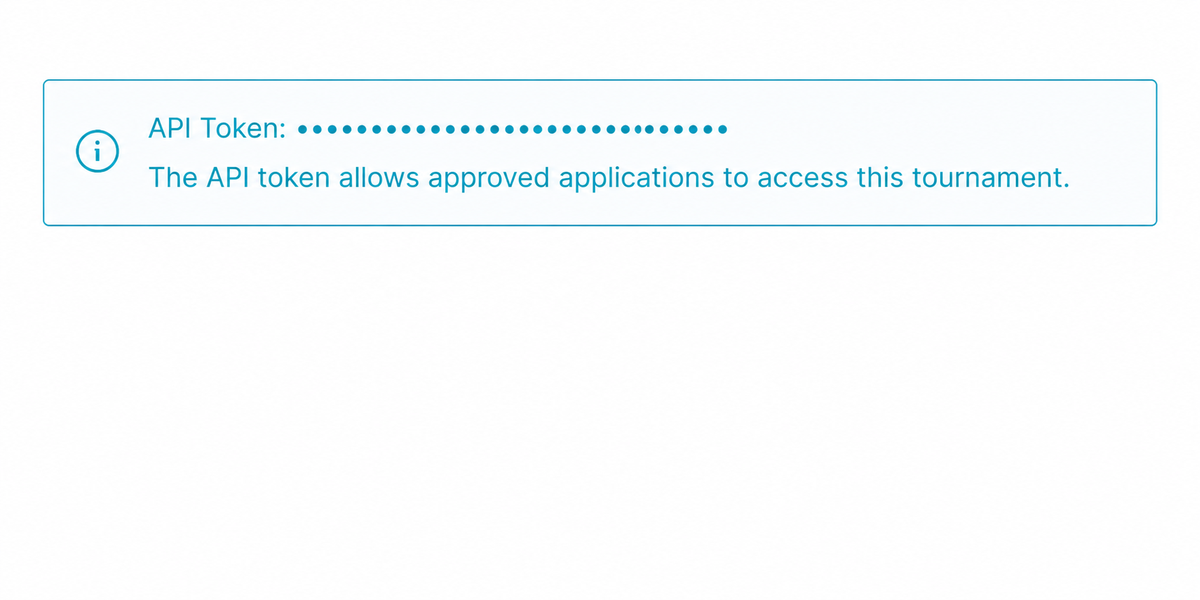
    Sanitized CalicoTab information box with the API token replaced by opaque dots
    Copy the API tokenEnter it only in the private setup modal.Open full-size image
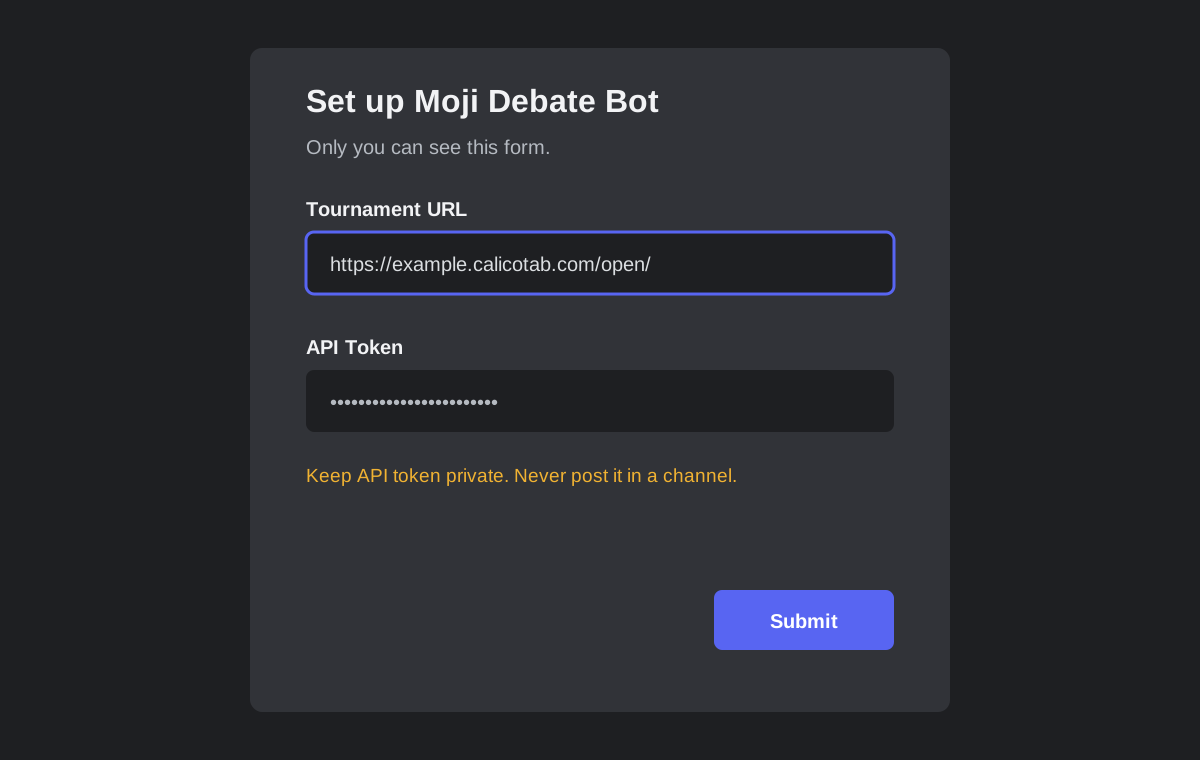
  5. Connect the tournament. After payment activation, run /setup bot and enter your tournament URL and API token in the private form. The bot automatically creates and secures its private Command Log. If Site Home lists several tournaments, each tournament has its own URL ending in a different slug; enter the specific URL for the tournament you want to connect. Use the URL of the specific tournament, not Site Home. Never post the token in chat or a support message.
    See the private setup form
    Private Moji Debate Bot setup form with example tournament URL and hidden API token
    Enter setup details privatelyUse the specific tournament URL and keep the API token out of public channels.Open full-size image
  6. Give staff access. Assign trusted tab staff to Tab. Tab and CAP are the default Bot Manager roles for running staff commands. CAP is assigned automatically to linked Core Adjudicators. Connecting as an Adjudicator or refreshing roles preserves an existing CAP role and its nickname prefix even if the Core Adjudicator checkbox is not selected. To revoke CAP, clear that checkbox and remove the Discord role manually.
  7. Choose the announcement channel. Run /config announcement-channel and select its required channel option. When a draw or motion is released in CalicoTab, the bot posts the corresponding release notice in this channel. The saved channel is confirmed privately.
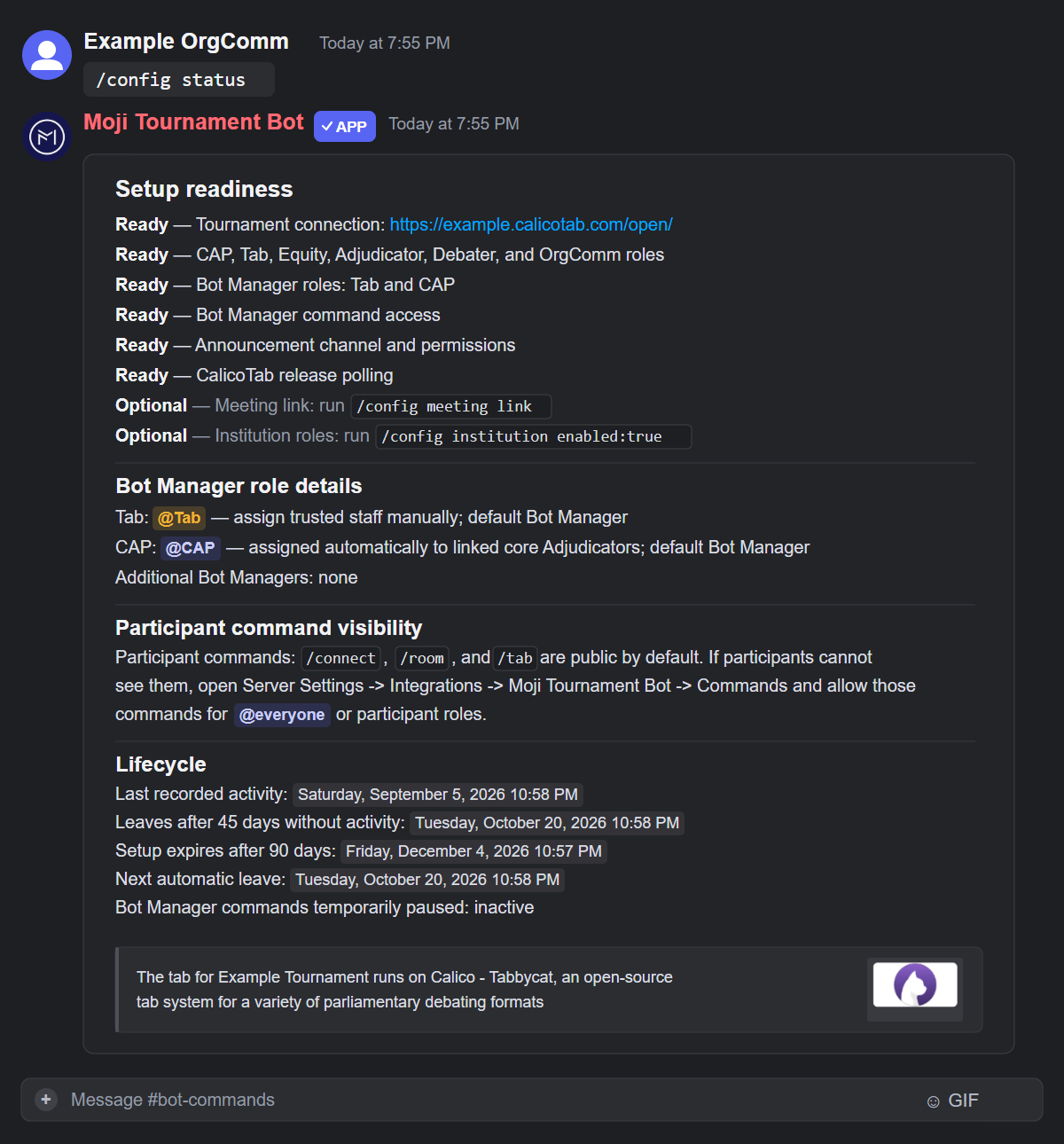
  8. Check you are ready. Run /setup status and resolve every Action needed item. Approval, connection, roles, Command Log, announcement channel and Bot Manager commands must be ready. Existing servers may need one reauthorization to grant Manage Channels, followed by /setup bot. Optional settings can wait.

    A server administrator with Manage Server can also check the private Runtime health — this server panel: last successful CalicoTab poll, failures or backoff, running background work, and this server's managed Discord queue pressure. Status does not start a poll, retry messages, or reset inactivity.

    Stale means no successful poll for over two minutes. Taking longer than expected warns about a long-running job, not a confirmed failure. Wait through active work or backoff, avoid repeating message-sending commands, and check again in a minute. If delays persist, contact Support. For authentication failures, check /config show and follow Change tournament credentials if needed.

    Poll history resets after restart; a successful poll does not confirm message delivery. Queue counts exclude sends outside the managed queue. Missing runtime data is shown as unavailable.

    See a ready status reply
    Private Discord setup status reply showing setup readiness checklist, Bot Manager role details, participant command visibility, lifecycle deadlines, and CalicoTab embed
    Check readinessFix required items first; optional settings can wait.Open full-size image

Ready? Continue to participant onboarding.

Optional settings: meeting link and institution roles
  • Optional: run /config institution-roles enabled:true to group participants in Discord by their CalicoTab institution.
  • For an online tournament, choose /meeting and enter your actual HTTPS Zoom or Google Meet URL in the required link option. A configured Bot Manager runs this; it saves immediately and the link appears in private /room replies and participant draw DMs.

Before a long break, check automatic cleanup deadlines. Stuck? See Recovery.

Participant onboarding

Once setup is ready, send participants their CalicoTab Private URLs by email, then help them connect to Discord.

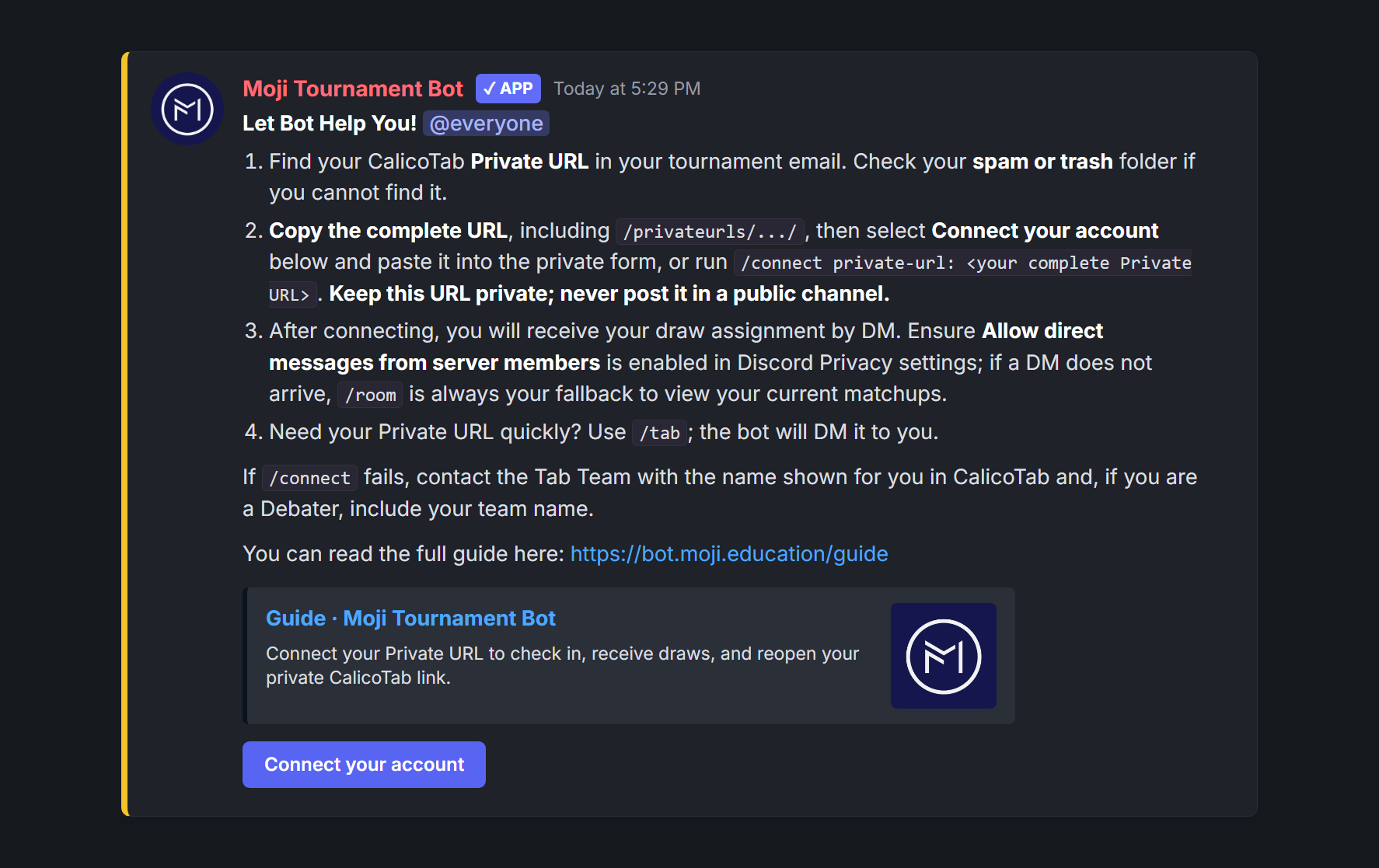
  1. Post instructions: run /onboard in the participant channel. It posts immediately and mentions @everyone, with no confirmation. The message includes the participant guide.
  2. Let participants connect: they use /connect with the complete Private URL from their email. Never collect these URLs in a public channel.
  3. Check coverage: run /link coverage for a private report. Follow up with unlinked participants and review the confirmation buttons before repairing role mismatches.
See the /onboard message
Website-style Discord mockup of the Moji Debate Bot /onboard message showing four numbered connection steps, connect-failure guidance, the full guide link, and a redacted Private URL placeholder
What participants seeThe bot posts these connection steps in the participant channel. The Private URL stays represented by a safe placeholder.Open full-size image
Help a participant connect
/link forThen select a member in Discord
Help a member connect. Select the required member option in Discord, then submit the command. A private form opens for that person’s complete CalicoTab Private URL. Keep the URL private.
/link removeThen select a member in Discord
Correct a mistaken link. Select the required member option in Discord and check the person before submitting. Removal is immediate, with a private reply and no confirmation. Then use /link for to connect the correct identity.
/link status
See whether one member or everyone in the server is connected, without showing anyone’s Private URL.

If participants cannot see /connect, /room, or /tab, open Server Settings → Integrations → Moji Debate Bot → Commands and allow those commands for @everyone or participant roles. Also check that the channel allows Use Application Commands.

See participant command access settings
Illustrative Discord integration settings: select connect, room, or tab and allow the intended participant role
1. Check command accessIn Server Settings → Integrations → Moji Debate Bot, review /connect, /room, and /tab individually. Allow @everyone or the intended participant roles without opening staff commands.Open full-size image
Separate illustrative channel permission panel: Use Application Commands allowed for the participant role
2. Check the channel permissionIn the participant channel’s Edit Channel → Permissions, check Use Application Commands for the relevant role and any member overrides.Open full-size image

Illustrative settings, not interactive controls. Discord’s layout may vary. Discord command-permission help.

Advanced role and institution maintenance
/update
Apply recent CalicoTab changes to Discord names and roles, including CalicoTab institution roles and CAP for linked Core Adjudicators.
/config institution-roles enabled:true
Create and maintain one Discord role for each CalicoTab institution. Leave this disabled if your server does not need institution grouping.

Direct Message

Teams
/dm type:team message:<your message>
Send to all linked Debaters across the tournament teams. Each linked Debater receives a separate DM.
Adjudicators
/dm type:adjudicator message:<your message>
Send to all linked Adjudicators.
Individuals
/dm type:individual message:<your message>
Select up to 25 human server members using the member picker. They do not need to be linked to CalicoTab.

Requires a configured Bot Manager role. Replace <your message> with your message, then review the private preview and recipient count. Select Send DMs to send or Cancel to discard. Nothing is sent before confirmation; the preview expires after five minutes.

The bot sends one DM per person and reports delivery failures privately. If delivery is blocked, ask the recipient to allow direct messages from server members, then retry.

Check-in

Open attendance in the announcement channel after participants are linked and active in CalicoTab.

Choose the attendance rule first: one representative per team (rep) or every team member (all). Adjudicators are always counted individually.

  • Choose the time: replace each <HH:MM> placeholder with your start or end time. Use start-time:now to start after confirmation.
  • Keep the window valid: it must last 5 minutes to 12 hours and may cross midnight.
  • Check the timezone: times use CalicoTab’s timezone or your timezone override.
  • Review and confirm: check the exact date, time and mode privately, then select Open Check-in Window. The public card appears in the announcement channel at the start time.
Debaters and Adjudicators: check in together
/checkin start start-time:<HH:MM> end-time:<HH:MM> mode:rep
  • Debaters: choose mode:rep for one active representative per team, or mode:all for every active team member.
  • Adjudicators: each checks in individually using the same card, in either mode.
  • Reports: preview and confirm the window. The bot reports missing teams and Adjudicators at midpoint and closing.
Optional: ask Adjudicators to check in again
/checkin adjudicator
  • When to use: when you need a fresh Adjudicator availability check for the round.
  • Immediate reset: marks active Adjudicators as checked out and posts a separate card with ✅ Check In and ↩️ Check Out, without a preview.
  • Debaters: their check-ins are unchanged.
Close either check-in early
/checkin close
Ends active participant and Adjudicator cards immediately. At the scheduled participant end, the bot closes them automatically.
  • Closed card: its buttons no longer work. Participants should use the newest card posted by the bot.
  • No buttons: when Participant Self Check-in is disabled in CalicoTab, the bot posts a notice without buttons. Enable that CalicoTab setting if participants should respond through Discord.
  • Mentions: opening notices mention @everyone. Midpoint and final reports do not mention anyone.

Missing check-ins

Check live CalicoTab attendance before releasing the draw.

  • Who is missing? Check Adjudicators, one representative per team, or every team member.
  • Where should the report go? Use visibility:hidden for a private report. Use visibility:public to post immediately in the current channel and mention @everyone. Start with a private report when checking readiness.
  • Which team rule? Use mode:rep when one representative checks in, or mode:all when every team member checks in. An active check-in supplies the default.
/missing visibility:<visibility> type:adjudicators
List Adjudicators who have not checked in, counting Adjudicators individually without requiring a mode parameter.
/missing visibility:<visibility> type:teams mode:rep
List teams with no active representative checked in.
/missing visibility:<visibility> type:teams mode:all
List teams with at least one active member missing. The report shows progress such as 0/3, 1/3, or 2/3.

Draw release

When the Tab Team publishes the draw in CalicoTab, the bot automatically posts it in the announcement channel and DMs linked participants. Discord commands cannot publish or change the CalicoTab draw.

CalicoTab may make a draw public in two steps:

  • Team release: teams, sides, and rooms become public. Adjudicator assignments stay private.
  • Full release: Adjudicator assignments also become public. The bot then sends updated DMs to Debaters and Adjudicators.

After Full release, Adjudicator allocation changes are checked every three minutes. Only affected linked Adjudicators receive a Draw Update DM.

/draw
Immediately repost the latest public draw to the configured announcement channel if the automatic announcement did not appear. There is no confirmation; the command result is private.

Motion release

Publish the current round’s motions in CalicoTab. The bot automatically posts them in your announcement channel, including any info slides with extra context. For long motions, participants can use View Public Motions to read the full text.

/motion
Immediately repost the current round’s latest public motion to the configured announcement channel if the automatic post did not appear. There is no confirmation; the result is private. This command cannot publish or edit a motion in CalicoTab.
/debate start time:<HH:MM>
Preview the current round's start time privately, check its date and timezone, then confirm to post in the configured announcement channel. Replace the time placeholder with the intended time.
See the preview and round-start announcement
Moji Debate BotAPPToday at 5:29 PM

Round-start preview
Timezone: Asia/Ho_Chi_Minh (GMT+7)
Source: override
Interpreted: Wednesday, 9 September 2026 5:44 PM (in 15 minutes)
Rounds: Round 1

Nothing has been posted publicly yet.

Post AnnouncementCancel

Only you can see this

Review the date and timezone. Post Announcement publishes to the configured announcement channel; Cancel publishes nothing. This example shows a reader in GMT+7.

Moji Debate BotAPPToday at 5:29 PM

🧠 Prep time for Round 1 ends in 15 minutes
⏰ The round starts at 5:44 PM (GMT+7).

Posted after you confirm /debate start time:<HH:MM>. Discord updates the relative countdown automatically.

/event start minutes:<minutes> name:<name>
Use for an upcoming event start countdown, such as name:Break Announcement or name:Award Ceremony. Displays ⏳ **Name** starts in MM:SS.
/event end minutes:<minutes> name:<name>
Use for a deadline countdown. Displays ⏳ **Name** ends in MM:SS.

Ballots & feedback

After the round, check missing ballots, schedule reminders, then follow up. Chairs must be linked and able to receive DMs; ballot checks use current public rounds.

/ballots status
First, privately find rooms that still need a ballot and resolve unlinked Chairs.
/ballots start time:<HH:MM>
Next, replace the time placeholder with the intended reminder time. Review the private date, timezone and rounds, then confirm Schedule Reminder. This replaces the previous schedule; nothing is sent immediately. At the chosen time, the bot checks the selected rounds and DMs each linked Chair whose room still has no ballot record.
/ballots remind
Remind linked Chairs of still-missing rooms in the last confirmed schedule; delivery results remain private without requiring a second confirmation. Wait for an active delivery to finish before retrying or replacing its schedule. A partial retry skips confirmed successful room reminders and retries pending or known failed deliveries, including after restart. Uncertain outcomes are not automatically resent: check receipt with the Chair before confirming a new schedule. After a completed batch, another invocation sends a fresh reminder. A timeout does not mean no DMs were delivered; an overdue or interrupted schedule does not send late automatically after restart.
/feedback status visibility:hidden
  • Check privately: review tournament-wide missing feedback with visibility:hidden. No DMs are sent.
  • Publish report: use visibility:public to post the report in the channel and mention @everyone. No preview is shown.
/feedback remind
  • Send reminder DMs: send direct messages to linked Debaters and Adjudicators with missing feedback across the tournament.
  • Delivery results: privately check sent and failed DM counts, plus missing Teams or Adjudicators without usable links.

Schedule & timezone

Publish round times in CalicoTab, then choose the Discord channel where staff should share the schedule.

/schedule
  • Edit first: change rounds and times in CalicoTab. The bot only displays that schedule in Discord.
  • Preview and post: review the latest schedule privately, then confirm to post it in the current channel. The bot mentions @everyone only after confirmation.
  • Round timing: use /debate start time:<HH:MM> for the round-start announcement.
/timezone zone:<IANA timezone>
A configured Bot Manager saves the timezone for staff-entered check-in, round-start and ballot reminder times immediately; the result is private. If your event uses Vietnam time (GMT+7), run /timezone zone:Asia/Ho_Chi_Minh. To use CalicoTab's timezone again, run /timezone zone:api. This does not change CalicoTab's schedule.

Veto

For debate formats with motion preference and vetoes (such as Asian Parliamentary or Australs), the bot runs interactive motion voting directly in Discord.

When motions are published in CalicoTab, the bot automatically posts the ⚔️ Motion Release & Veto card to your announcement channel.

  • Team debater authorization: any linked debater on the assigned team can click Submit Team Veto in the announcement channel or directly inside /room to privately rank motions and cast their team's veto. Teams should agree on their ranking before clicking Submit Team Veto.
  • Private voting steps: debaters privately select their 🥇 1st Choice and ❌ Veto motion. The remaining motion becomes their 🥈 2nd Choice.
  • Check room status: participants and adjudicators can click 📋 My Room Status on the announcement card or run /room to privately check whether each team in their room has locked in preferences or is still deciding.
  • Parallel preliminary rooms: each debate room resolves independently as soon as both teams submit (or upon timeout). The central card updates first; linked debaters and adjudicators then receive the result through the managed DM queue, so it may arrive shortly afterward.
/config command-log mode:<on|off>
Enable or disable the private Command Log. It defaults to on and records successful Bot Manager commands plus meaningful automation transitions. Existing messages and unresolved deliveries remain when logging is off. The log never includes raw options, tokens, Private URLs, meeting links, or DM content.
/config veto enabled:true duration:<minutes>
  • Enable and countdown: enable motion veto and set the voting duration (1–15 minutes, default 5 minutes). Requires Manage Server.
  • Flexible configuration: staff can set either option individually or both together (for example, /config veto enabled:true).
  • When disabled: motions use standard announcements without voting.
/veto status
Privately check tournament-wide motion veto progress for the current public round, including which rooms are finalized, which teams have locked in their preferences, and which teams are still deciding. No DMs are sent.
/veto start
Immediately start or recover an active interactive veto session for the current public round if the automatic post did not appear. There is no confirmation; the result appears in the configured announcement channel immediately.
Recovery and troubleshooting

Recovery

Pending approval? Contact Support; the bot’s dashboard owner must approve the server before setup continues.

Problem or taskNext action
Commands are missingOpen steps
Announcements are missingOpen steps
Motion veto needs recoveryOpen steps
A participant is not receiving DMsOpen steps
Roles or nicknames are not updatingOpen steps
A preview expiredOpen steps
Change tournament credentialsOpen steps
Repair or merge duplicate rolesOpen steps
Temporary command pausesOpen steps
Remove the botOpen steps
Automatic cleanup and retentionOpen steps

If an unexpected error reply shows a Support ID, send that 12-character code to Support with the command name, server or tournament, and approximate time and timezone. The bot operator uses the code to find the matching sanitized log entry and investigate what happened. If no Support ID is shown, send the error text or a sanitized screenshot instead. Never include credentials, API tokens, or Private URLs.

The server owner and configured Bot Managers receive incident alerts by DM. Follow the reported action and check /config show for current health. The bot reports recovery when the incident clears.

Commands are missing

Participant commands

  1. A server administrator opens Server Settings → Integrations → Moji Debate Bot → Commands and allows /connect, /room, and /tab for the intended participant roles or @everyone.
  2. In the participant channel, check Edit Channel → Permissions → Use Application Commands for those roles and any member overrides. See the command-access settings example.
  3. Ask the participant to select /connect in that channel again.

Bot Manager commands

  1. A server administrator with Manage Server runs /setup status, including when the affected staff member cannot see it. Check that the staff member has a configured Bot Manager role.
  2. If command access needs recovery, select Enable Bot Manager commands from /setup status or /setup bot and complete Discord authorization. This repairs command visibility after a partial installation, role or command changes, or manual permission changes; it does not grant server permissions.
  3. Run /setup status again and confirm command access is Ready. Ask the staff member to try their command again.
Announcements or Command Log messages are missing
  1. A Bot Manager runs /config show and follows the relevant Next action. Check the reported channel permissions and delivery health.
  2. For Command Log permission failure on an existing server, reauthorize the bot with Manage Channels and run /setup bot once. If delivery is unknown, do not repeat message-sending commands; contact Support.
  3. For draw or motion announcements, the Tab Team checks that the expected item is public in CalicoTab.
  4. Once those checks pass, run /draw for a missing draw or /motion for a missing motion, once.

For a missing schedule or start-time announcement, follow the separate schedule or round-start instructions.

Motion veto needs recovery
  1. A Bot Manager runs /config show to verify that motion veto is enabled. If disabled, a server administrator with Manage Server runs /config veto enabled:true.
  2. The Tab Team confirms that the round has a published draw and at least two motions in CalicoTab.
  3. Run /veto start in the configured announcement channel. This starts or recovers the interactive motion veto session for the current public round immediately, without a preview.
  4. In multi-room preliminary rounds, each debate room runs an independent veto in parallel. Debaters can submit preferences by clicking Submit Team Veto on the central announcement card or directly inside /room.
  5. If motions were unreleased or edited in CalicoTab, the bot automatically cancels prior veto records and allows a fresh session upon rerelease.
A participant is not receiving DMs

A timeout does not prove a DM was not delivered. Draw and veto notifications with uncertain outcomes are not automatically resent after restart. Ask the participant to check DMs and use /room; do not repeatedly restart the bot or resend to everyone.

  1. The participant checks their connection confirmation; a Bot Manager can check /link status and use the connection help if needed.
  2. Ask the participant to allow direct messages from server members and check that they have not blocked Moji Debate Bot.
  3. For a draw or veto-result DM, the Tab Team checks that the draw or result is available. The participant runs /room to retrieve current details privately; this does not resend the missing DM.
  4. For a manually sent /dm, the sender reviews the delivery result, then creates a fresh DM preview and confirms it. Select only the intended recipients to avoid sending another copy to everyone.

Recovery is confirmed when the participant can view their assignment or receives the retried message.

Roles or nicknames are not updating
  1. A server administrator checks that Moji has Manage Roles for role changes and Manage Nicknames for nickname changes.
  2. In Server Settings → Roles, move Moji above the role it needs to manage. For nicknames, it must be above the member’s highest role; it cannot change the server owner’s nickname.
  3. A Bot Manager runs /update after participant or institution changes and checks the reply and affected member. Use /setup bot for missing standard roles or setup recovery, then check /setup status.

If the wrong duplicate role is selected, follow role repair and duplicate cleanup.

A preview expired
  1. The person who started the command reruns the command named in the expiry reply.
  2. Review the new preview, then confirm or cancel using its controls. Only its creator can use them.

Private previews expire after five minutes; pending previews are also lost after a bot restart. Check the new confirmation reply to verify the action completed.

Change tournament credentials
  1. A server administrator with Manage Server runs /setup bot.
  2. Enter the tournament URL and API token in the private form. Keep tokens and Private URLs out of public chat and support messages.
  3. Run /setup status and resolve any Action needed items to verify the connection.

The server’s bot settings remain saved. Successful setup restarts both cleanup timers.

Repair or merge duplicate roles

Repair roles with /role fix

First choose the roles to keep. Deleting duplicates is a separate review and confirmation.

1. Choose and repair your roles

  1. Run /role fix. For each group, select the Role to keep. Identical names use Candidate A/B labels.
  2. Read the recommendation and its reason. It may suggest a different role from the configured one to preserve access; you must make the selection yourself.
  3. Select Review changes, review all six groups, then confirm repairs. The chosen roles keep their members and permissions.

2. Review duplicate cleanup

  1. Open Review duplicate cleanup. Safe matching duplicates are preselected; uncheck any you want to keep.
  2. Select Review merge and deletion. Check the eligible, blocked and intentionally kept counts, then visit every review page.
  3. Need to keep a different role? Use Change retained role to start a fresh selection without applying changes.

Before confirming: merging can change members’ access. Duplicate channel rules replace conflicting rules on the retained role; later duplicates in the displayed order win conflicts. Merging requires Manage Server and Manage Roles.

3. Confirm and check the result

  1. Select Confirm merge and deletion. Mixed batches process eligible roles only; blocked roles stay untouched.
  2. Watch the private progress reply. Moji Debate Bot copies permissions and channel rules, transfers members, verifies the result, then deletes each duplicate. Progress includes counts and elapsed time.
  3. Selected cleanup complete means all selected duplicates succeeded. Otherwise, follow the next action shown for each remaining role. Intentionally kept roles are not failures.

Blocked or incomplete?

  • Command-access blocker: select Update Bot Manager command access, or run /setup status if no link appears. Then select Refresh cleanup review and review again before confirming. This updates command access, not server permissions; the old confirmation cannot be reused.
  • Permission blocker: fix the permission or role-order issue named in the reply, or change the retained role. Start a fresh review before retrying.
  • Inspection failed: contact Support with the reported reason. Affected cleanup is disabled until inspection works; safe name repair remains available.
  • Expired preview: previews expire after five minutes. Rerun /role fix for a fresh review.
  • Partly completed: completed changes are preserved; a failed merge keeps its duplicate. Follow the reported next action, then rerun /role fix to retry remaining work.

After changing Bot Manager mappings, check /setup status.

Which roles can be repaired or deleted?
  • Matching accepts Unicode, case and singular/plural variants, including Judge/Judges for Adjudicator and Team/Teams for Debater.
  • Bot Managers can delete empty duplicates without permissions or dependencies. Protected, configured and command-referenced roles cannot be deleted.
  • Cleanup checks current mappings and live Discord command references. Old command-authorization history alone does not block cleanup.
  • Members are inspected temporarily to verify transfers without saving merge member lists.
  • Participant and CAP roles remain subject to later CalicoTab synchronization.
Temporary command pauses

If Bot Manager commands are temporarily paused

If Bot Managers keep retrying while the bot asks them to wait, commands that refresh large amounts of data or post publicly may pause for ten minutes. The server owner and configured Bot Managers receive one DM, and /setup status shows when the pause ends.

Participants can still use /room, /tab, /connect, and active check-in buttons. Setup and configuration commands also remain available. Wait until the time shown in the private reply before trying the paused command again.

Remove the bot
  1. A server administrator with Manage Server runs /setup remove.
  2. Review the private confirmation. Select Delete data and remove bot to proceed, or Cancel.
  3. Check the result: the bot permanently deletes saved credentials, participant links, configuration, and scheduled work, then leaves the server.

Reinstalling starts a new setup. Removal also makes the bot leave when no saved configuration exists.

Automatic cleanup and retention

Automatic server cleanup

Two cleanup timers run at the same time, and the bot leaves when either timer ends first. Recorded activity means a successful participant command, an active check-in button, or an authorized OrgComm command. Automatic CalicoTab checks, rejected requests, and /setup status do not reset inactivity.

  • After 40 days without activity: the server owner and configured Bot Managers receive one warning DM.
  • After 45 days without activity: the bot deletes the server’s saved data and leaves.
  • 85 days after setup: the server owner and configured Bot Managers receive one warning DM.
  • 90 days after setup: the bot deletes the server’s saved data and leaves. Run /setup bot again before then to restart this period.

Run /setup status to see both deadlines and the date that comes first. To reset inactivity, use a normal bot command or an active check-in button. If one person cannot receive DMs, the bot still warns everyone else who can receive them.

Full-size setup image